Yes as the title says, Windows 10 will be a free upgrade to Win7,8 and 8.1 Users. As stated by Microsoft yesterday.
There is a condition though that you must upgrade within 1 year from launch, smart move huh!
Also another important update microsoft gave was about a new browser: spartan. I think they know how frustated the IE users are.
Another big secret is the cortana, a voice assistant built in to do regular tasks for you just like SiRi. Isnt that cool .
At this update windows is trying to get users to adapt windows with all their devices.Win10 will be highly synchronized
within PC and tablets and mobiles. Also the apps which were available on pc till now will be totally be available on all platforms.
With Windows10 it will be very easy to move our work from pc to other platform.
A new Office edition is also what you are going to see.
So the final question: When are we going to see Win10 on our machines?
Microsoft has stated the official launch in late 2015 and the Tech Review edition will close in April 2015
Will windows 10 will be a hit like win7 or just a lost focus os like win8 , what do you say ?
Windows 10 is out for developers and will be available with
all newer PCs within next 2 months.Microsoft's
Joe Belfiore repeatedly emphasized that this is a very early build without even
all the features that have been announced, and that there might be rough spots.
We didn't see any problems in the time we had to try it out at Microsoft's San
Francisco event, but what's clear is that there is plenty more to come.
Microsoft gave the first look at its Windows 10
operating system on Tuesday, a major release that will span all hardware
from PCs to phones and try to address the ills that have dogged Windows 8.
The event in San Francisco was aimed mostly at enterprise
customers, and Microsoft promised an OS that will be more intuitive for the
millions of workers still on Windows 7 and older OSes. Here’s a rundown of some
of the key points we learned Tuesday about Windows 10.
About the new 'START'
As expected, the Start menu is the default if you use
Windows 10 with a keyboard and mouse, though you can keep the full-screen Start
screen if you prefer it. Even on the Start menu, you can pin Live Tiles in
multiple sizes on the right, but on the left you also get the familiar list of
pinned and recent applications, complete with jump lists for files, the search
box that you can also use to run commands and a power button for shutting down
or restarting your PC.
The search box has all the Windows 8 features, including
results from Bing and the Windows store, and a separate Search menu next to the
Start button gives you trending topics directly from Bing, too.
Check Out this video From Microsoft : Introducing Win 10
ALT + TAB is outsmarted by Task View button
Using Alt Tab to move between open windows is a keyboard
shortcut that's been around since 1990 and it still gives you a line of windows
to choose from. As with Windows 8.1, those now include any modern apps you have
running, and those now open as windows on the desktop like any other software
you're running, ready to be resized or snapped side by side. The new Task View button
on the taskbar is there to introduce the idea of moving between windows to the
vast majority of Windows users who've never tried Alt Tab.
Snapping does more than the 'two desktop apps getting half
the desktop' layout that you get in Windows 8. If you have one narrow window,
the second window can take up all the rest of the space, or you can snap four
apps, one in each corner. Windows will even show thumbnails of open windows to
help you pick the one you want to snap without rearranging everything.
Devices running Win10
Windows 10 will run across an incredibly broad set of
devices – from the Internet of Things, to servers in enterprise datacenters
worldwide. Some of these devices have 4 inch screens – some have 80 inch
screens – and some don’t have screens at all. Some of these devices you hold in
your hand, others are ten feet away. Some of these devices you primarily use
touch/pen, others mouse/keyboard, others controller/gesture – and some devices
can switch between input types.
Actual release
The OS will launch around the middle of next year, after
Microsoft’s Build conference. Before that, a select group of “Windows insiders”
will receive a “technical preview build” for laptops and desktops on Wednesday
this week, followed “soon after” by a preview for servers. Previews of other
device categories will follow later.
Charms
Despite rumours, the Charms bar that you get when you swipe
the edge of a touchscreen hasn't gone away in Windows 10, but you might not see
it when you use the Windows-C keyboard shortcut. If you have a mouse and
keyboard and the window that's active is a modern app like the Windows Store,
that keyboard shortcut brings up a mini Charms menu hanging off the top left
corner of the app instead.
This has the three dots that give you any extra commands,
now clearly labelled as App Commands, the Search, Share and Settings charms
that are usually on the Charms bar, plus other useful commands like Play, Print
and Project, plus the option of running the app Full Screen. If you can't print
from the app, the Print charm is on the menu but greyed out.
That makes the Charms less touch friendly but much more
mouse friendly when you're controlling an app; which is what you want when
you're using a mouse - all the way over to the side of the screen and all the
way back isn't efficient with a mouse. When you're controlling Windows - which
is what you get when you don't have a modern app selected - having the Charms
and settings bar at the side of the screen is fairly logical. And those Charms
are staying around (although probably in a different arrangement with a more
logical division of what shows up where) because when the Windows team took
them out, users at Microsoft complained loudly. That big friendly sidebar for
choosing and changing Wi-Fi turns out to be really handy.
Finally
Windows 10 is all about balancing the demands of different
users. It's not just business users with desktop PCs and keyboards, versus
tablet users. Windows is for sensors and data centres and Windows Phone and
Xbox One as well as tablets and laptops and desktop PCs and giant wall screens
and all the devices in between (at least in Microsoft's ambitions).
But what
we're seeing in this first technical preview release is very much about
balancing the heritage of two decades on Windows with the new world of touch,
and with making IT teams comfortable with the BYOD and consumerisation features
introduced in Windows 8 by giving them more security options and more
management.
At the Climax of XP
Win xp was one of my favorite OS and of course will be.
Let's see if win10 can fill the blank space created by XP. However win7 had a
nice run throughout its life but it's not true about win8/8.1.
Many users are still trying to sort out their problems
with win8.1. Let's hope Microsoft presents customers with a better OS.
Anyways thank you for reading my post. If you like the
post please share it . I would love to hear for you. Comments section is always
open!!!
Here is some simple suggestions applicable to all laptop irrespective of model and manufacturer. Try to follow those and keep your battery alive for long time.
Unplug USB First:
USB are ultimate battery drainers so dont plug USB devices without any need and Safely unplug USB whenever its not needed so you can save your battery charge highly.
Any USB device like external hard disk ,Your mobile connected to laptop even your external mouse will drain charge heavily.
Eject CD/DVD:
I had seen many people keep CD/DVD s inside the drives and they don't know these drives can drain their charge heavily for their rotation. So keep this in mind
Keep screen dark by lower lights:
LCD screen in the laptops also drain heavy charge from your battery so keep your screen in lower lights to increase your battery life.
Kill your screensaver:
If you still using screen savers, your batteries enemy is there,kill the screen saver. They usually drain more charge from battery.
Dont let laptop to sleep:
Instead of letting your laptop in sleep mode make them hibernate since hibernate consumes less power than sleep mode.(But it will take more time to resume from hibernate than Sleep)
Dont keep lap Hot:
Avoid using laptop to contact with direct sunlight and don't block the air vents of laptops.Frequent heating of your laptop will surely damage your battery's life.
Use only your adapter:
You may not aware about a fact that charger of same brand laptop are having different watts so when you use different charger it will affect your battery life (You can even examined your battery taking more time/very very less time in contrast to charge when you use others charger instead of yours)
Only charge battery when it dries:
Avoid continuous charging of laptop even your mobile phones which heats your device which surely costs your battery life.
Be Updated:
My friend hinted me a point that his Mac book is not heating that much after performing updation( I am not sure with this point) but anyway keep your drivers updated.
Switch your laptop to power saver mode in your power option designed by Microsoft to increase your battery life. You can change your power option by control panel->power option in windows.
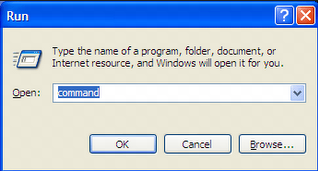
RUN utility is one of the best features offered by Windows OS. Since its introduction, shortcuts savvy people have been loving it. Whether it would launching any software, application or any Windows snapshot, RUN commands have been the first option for many.
If you belong to the Windows run commands fan club, then you must already be aware of the some of the RUN commands. But if you wish to enrich your RUN command playbook, then the below list would help you do so.
All you need to do is find out the ones which you would be using, or other needing and start using them. Since these RUN commands are meant to save your time and efforts, and there is nothing sweeter than that.
Have you ever wished to know if there is a way to copy music from iPod, iPhone, iPad to computer on Windows? I bet you have. And if that is the reason why you have ended up reading this page, then let me congratulate you because you reading the right post.
Once you are done reading this post, you would be amazed to believe how easily one could copy music from iPod, iPhone, iPad to computer. Without wasting much of your time, lets get into this tutorial.
Step By Step Guide To Copy Music From iPod, iPhone, iPad To Computer On Windows
Have you heard of Sharepod? Yes, you are right it is an iTunes alternative for Windows which is capable of doing all the things that your iTunes does. In addition to that, it also lets you copy music from your iOS device.
If you do not have Sharepod on your computer, download and install it on your computer
Connect your iOS device to your computer and launch Sharepod
Once the Sharepod program detects your device, it would list out the contents on your device
Select the songs that you want to copy on to your computer and click on Copy to computer button on the upper left corner of the window
And if you wish to copy all the songs on your device, just click on the Backup iPod button
It would not prompt you to enter the location where you want to copy the music. Once done choosing the location, click on the OK button
Wait and relax, while Sharepod copies music from iOS device to computer
I am sure that 8 out of 10 users have either seen this situation or have been struck by the thought that how to reset forgotten Windows password? I’ll be honest! Its seems like an unknown mystery if you are not aware, and an easy few clicks if you know how to do it. And do make sure that you dont forget your Windows password as it would surely take some efforts of yours.
To reset Windows password, you would need a Windows installation disk and few minutes. Here is the step by step procedure:
Steps To Reset Forgotten Windows Password
Place your Windows installation disk inside your computer’s CD ROM
Boot your computer from the Windows disk
Once its detects the Windows Installation disk, wait for it to proceed and click on Repair your computer option
Keep going inside until you get to click on Command Prompt option. Once you find it, just click on it
Now hit the below two commands on the Command Prompt